Reverse Proxy
Every app on your network gets a real name with HTTPS.
Type radarr.home.lan or radarr.example.com and get a trusted padlock instead of a browser warning. Set it up step by step in a browser, with no config files to write. Caddy underneath, managed for you.
One image across FreeBSD and Linux
Pull ghcr.io/daemonless/reverse-proxy:latest on amd64 or arm64. Same web UI, same API, and same encrypted backup file on every host.
FreeBSD
Runs natively on FreeBSD inside a jail. Caddy and the Go and Svelte admin process are compiled for FreeBSD amd64 and arm64.
Linux
Built on Linux (Alpine) for Linux amd64 and arm64, running the same Caddy binary, admin UI, API, and label watcher.
Three ways to name your apps
Pick how your names should look during first-run setup. Every app gets automatic HTTPS whether your network stays offline or uses your own domain.
Private home ending
radarr.home.lanFree and works without the internet. The proxy creates its own root certificate, restricted to your chosen ending so it can never vouch for any other site, and walks phones and computers through trusting it once with a QR code.
Built-in DuckDNS
radarr.you.duckdns.orgPick DuckDNS in setup and paste your token. The proxy obtains and renews a Let's Encrypt wildcard certificate automatically, with nothing to install on any phone or computer, while keeping names private to your home network by default.
Wildcard DNS-01
radarr.example.comConnect Cloudflare, Route 53, DuckDNS, deSEC, Porkbun, Hetzner, OVH, Gandi, RFC 2136, or acme-dns. Tokens are tested on Let's Encrypt's staging service first, and one wildcard covers every app so names do not appear in public certificate logs one by one.
Managed in one place
From first-run router DNS steps to 1-minute uptime checks, short links, and encrypted backups, every part of running Caddy is handled in the browser.
1-minute uptime and history
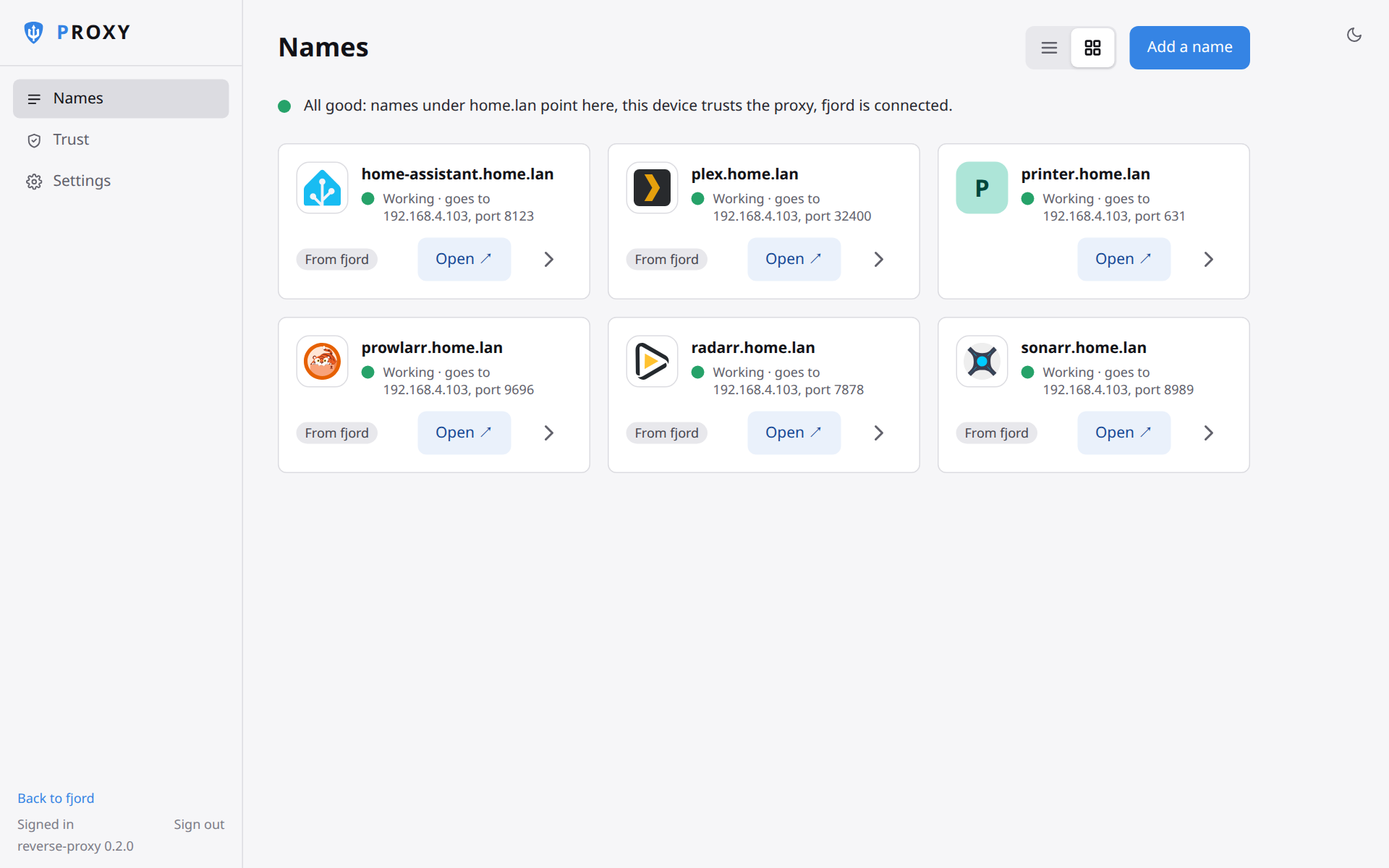
Every name is checked once a minute. View 24-hour status bars on the Names page and 90-day uptime with outage logs on each app.
ntfy and webhook alerts
Send a message to ntfy or a webhook when a service fails two checks in a row, and again when it comes back.
go/radarr short links
Type go/radarr in any browser on your network to open radarr.<your domain>, or open go/ for the proxy's Names page.
Upstream probing
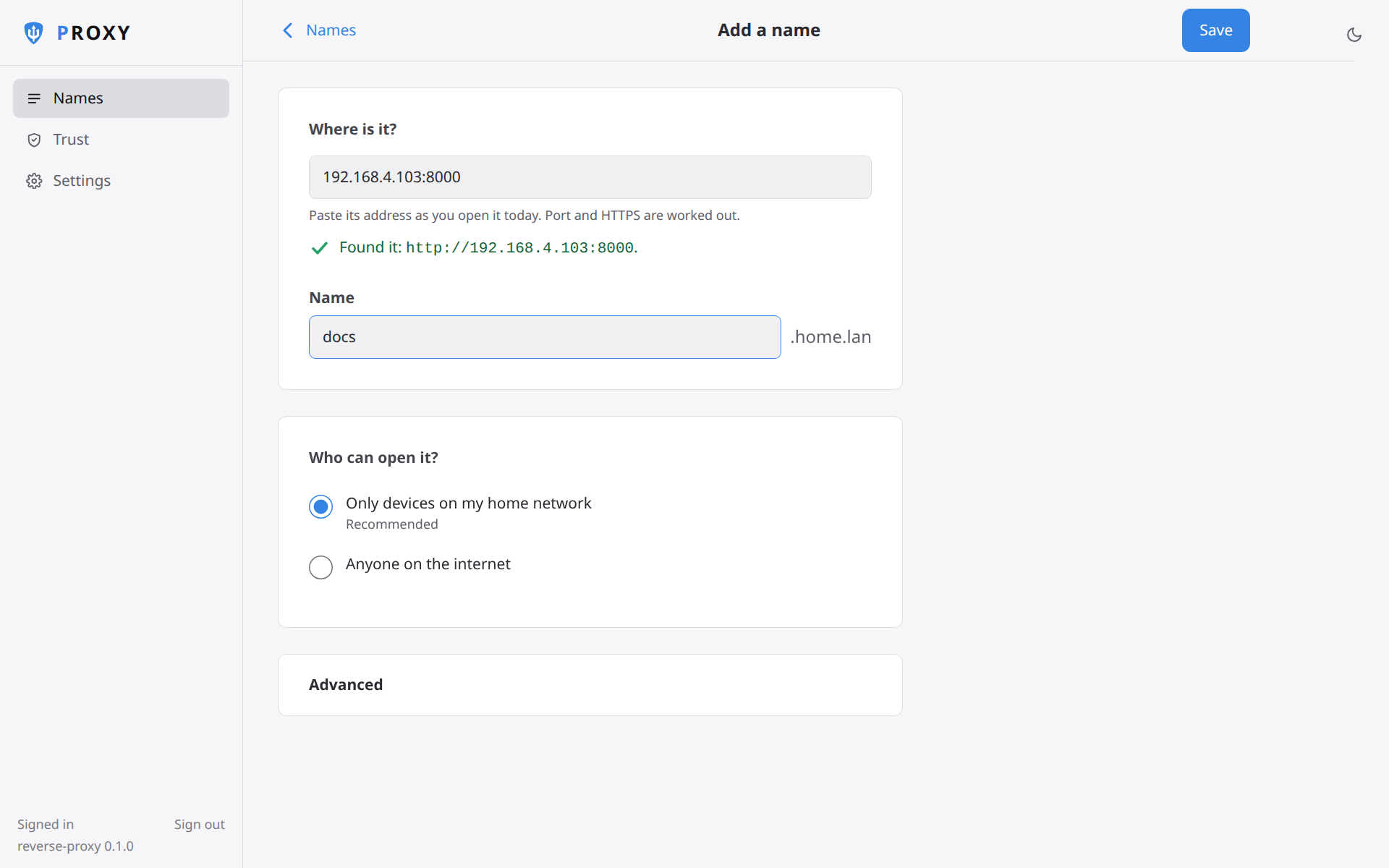
Paste the address you open today. The proxy checks whether the app speaks HTTP or HTTPS, confirms that it answers, and handles self-signed upstream certificates.
Home-only by default
Names open only on your home network and any VPN subnets you add, such as Tailscale, unless you open one to the internet. Outsiders get nothing back.
Strict apps and extra names
Give one app multiple names, forward to HTTPS backends, or send the backend's own address in Origin and Referer headers for apps like UniFi.
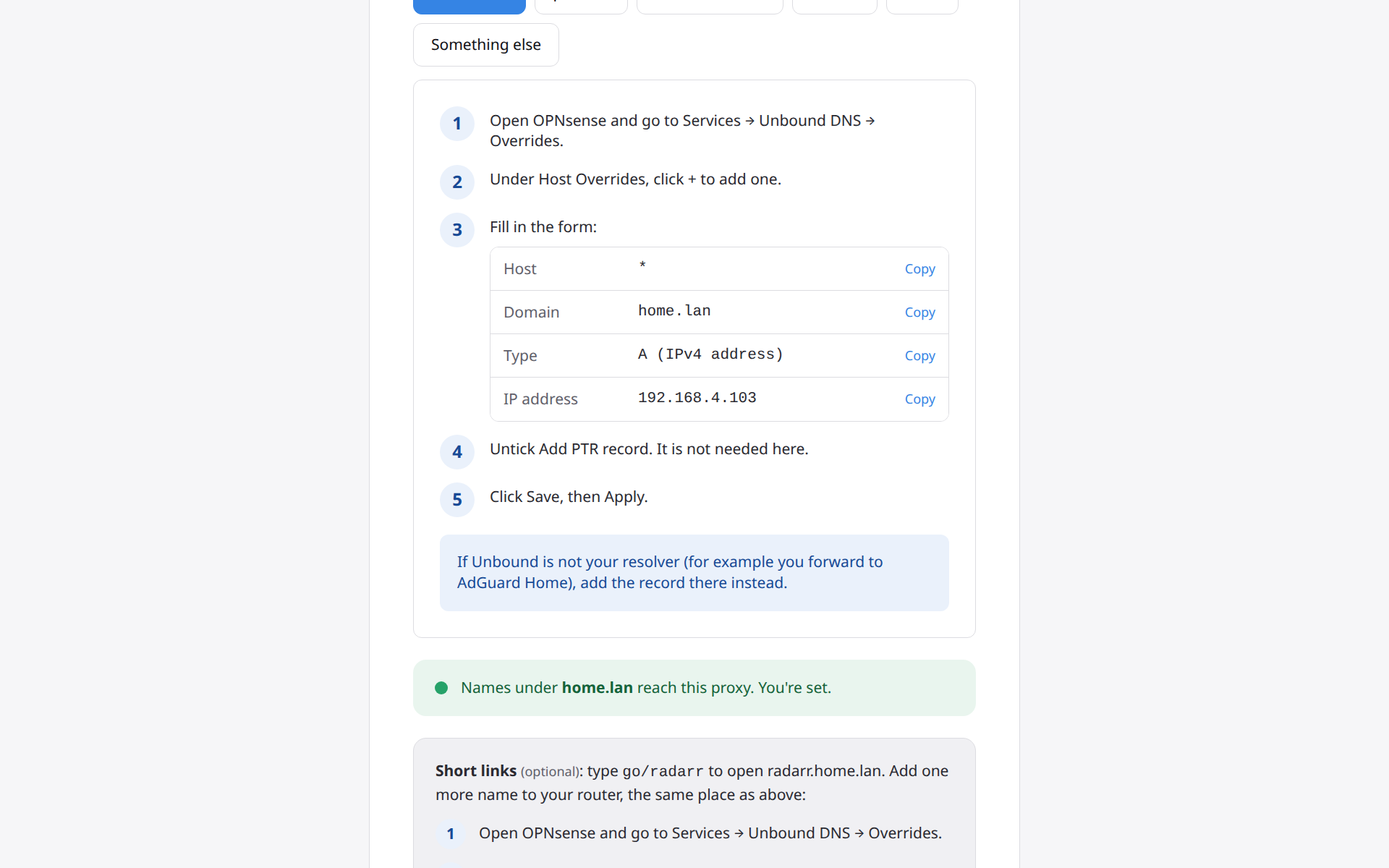
Walks through your router
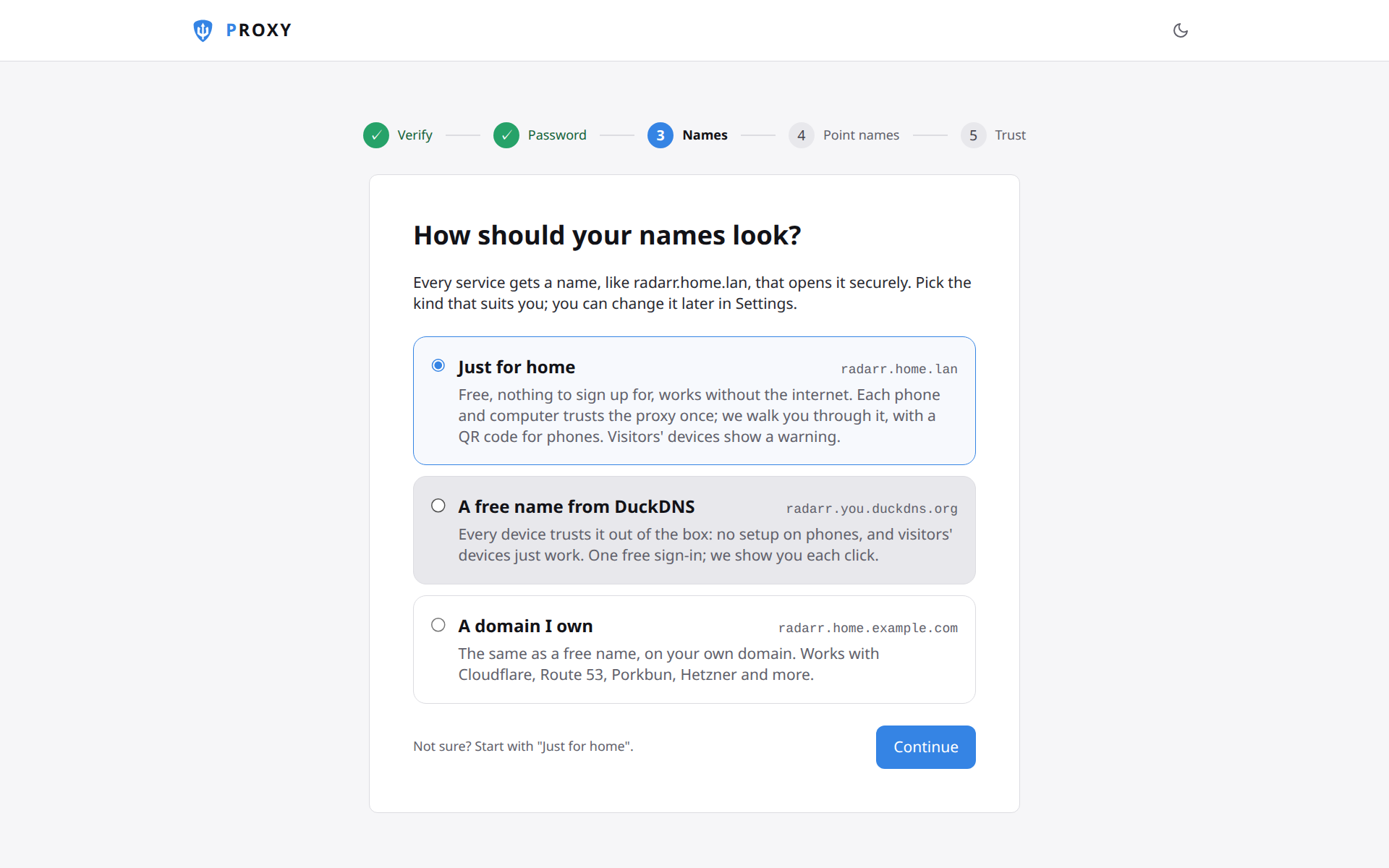
Copy-paste DNS records for OPNsense, pfSense, UniFi, AdGuard Home, Pi-hole, and others, turning green once queries reach the proxy.
Plain-word diagnostics
When a certificate or DNS check fails, the proxy explains why in plain words, such as a rejected token, missing DNS record, or rate limit, and how to fix it.
Safe config updates and Undo
Caddy's configuration is generated from one state file; anything Caddy rejects leaves the running config in place, and deleted names have one-click Undo.
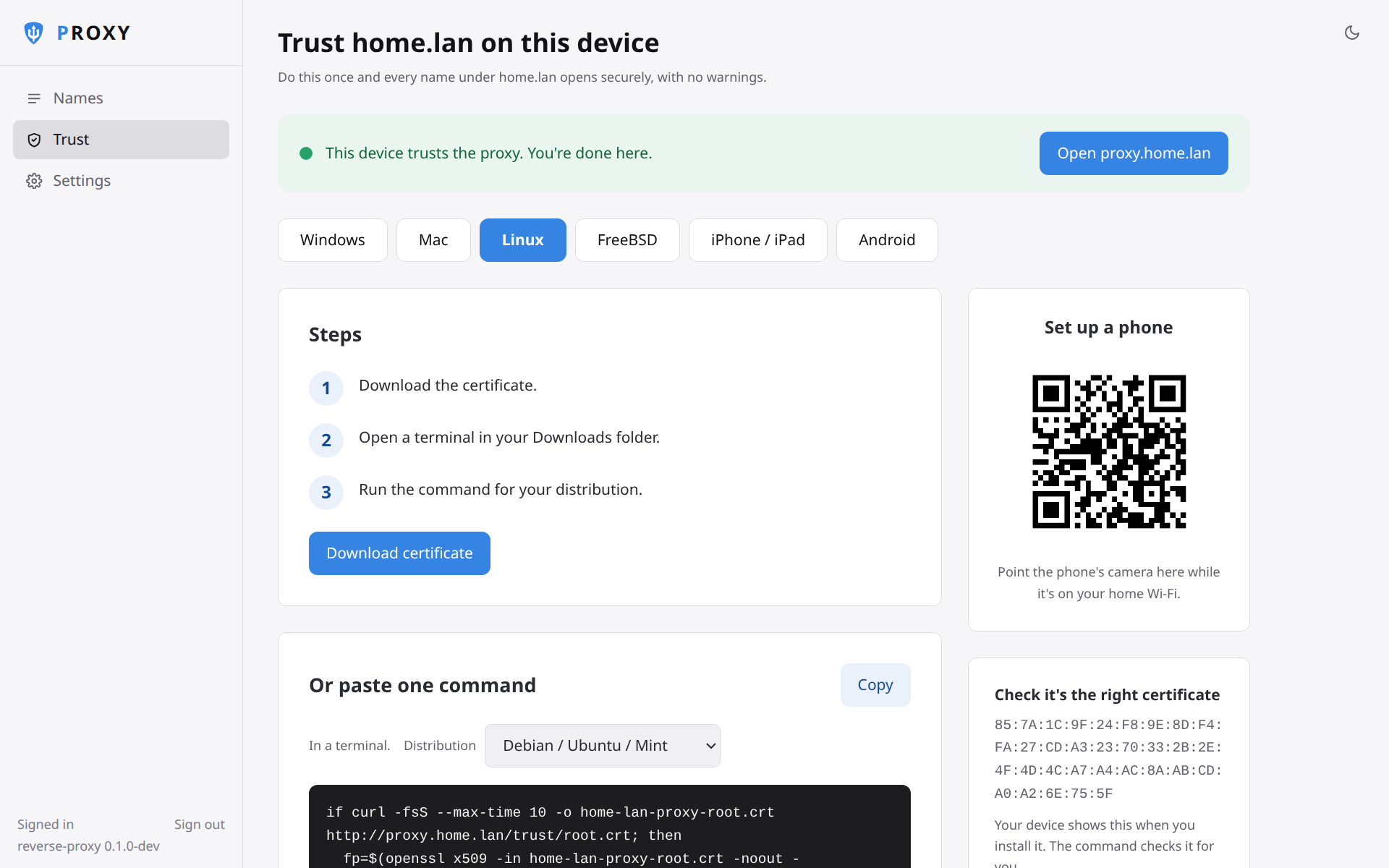
QR code for phones and tablets
Scan once from an iPhone, iPad, or Android device to install the home certificate, guided step by step with OS menu paths.
Desktop and server operating systems
Trust instructions for macOS, Windows, Linux, and FreeBSD so browsers and CLI tools accept your .home.lan names.
Scoped root authority
Uses X.509 name constraints limited to your home ending, so your devices trust it for .home.lan and nothing else on the internet.
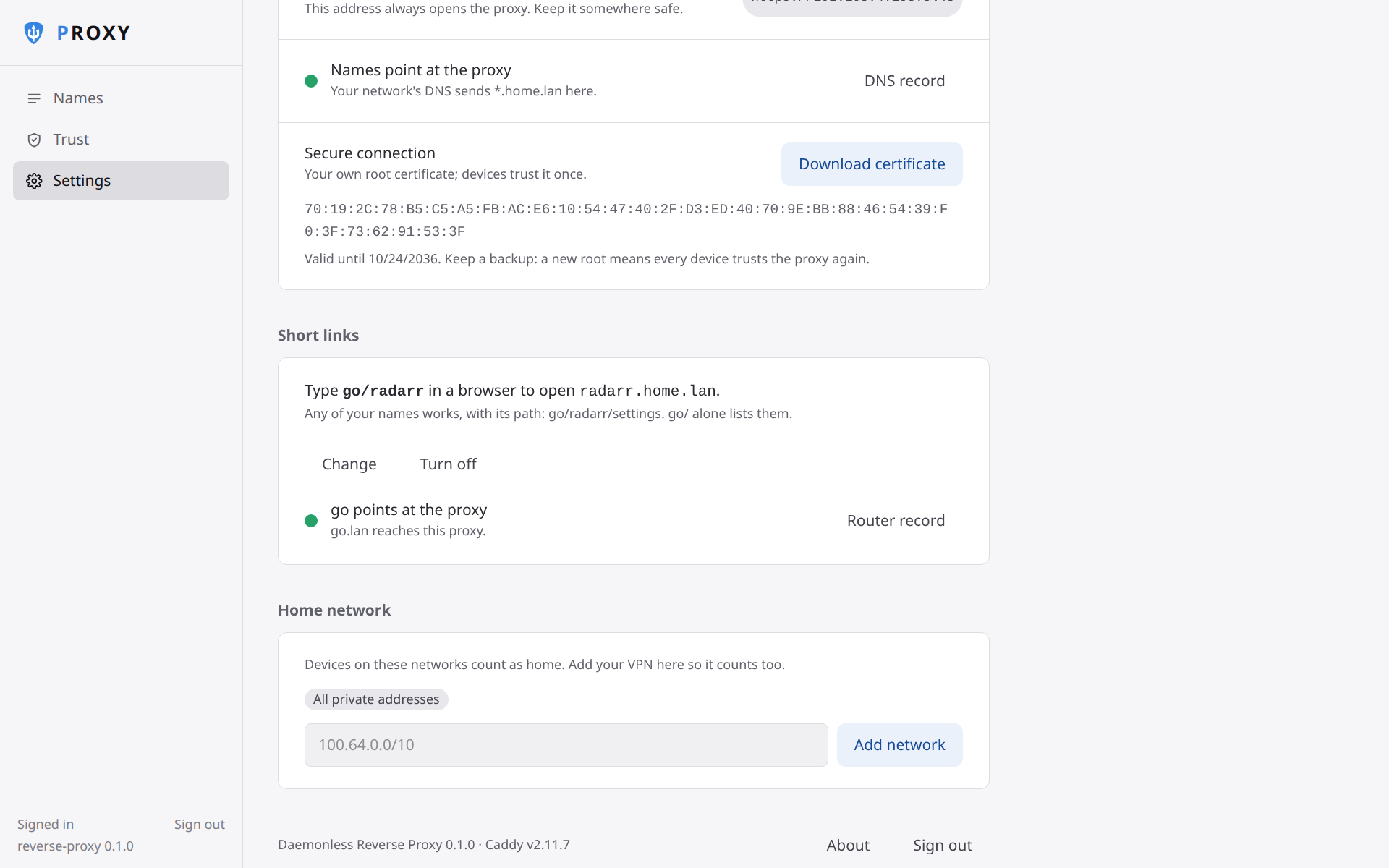
Multi-VLAN and VPN support
Add VPN subnets such as Tailscale (100.64.0.0/10) as home, and pick which attached VLANs may open home-only names while still reaching apps on other VLANs.
One backup file
Download one encrypted backup holding names, settings, DNS tokens, and the root CA. Restore on a new host without re-trusting your devices.
Privilege-separated processes
Only Caddy runs as root to bind ports 80 and 443. The web UI and API run unprivileged as PUID/PGID and talk over Unix sockets.
fjord, container labels, and API
Add names in the browser, or let your container manager, compose labels, and scripts register services automatically.
Pairs with fjord
Install Reverse Proxy from fjord and the two pair automatically. fjord names your stacks in one click and updates each name whenever a container moves to a new address. Additional hosts link with a pairing link.
Container labels
Add io.daemonless.proxy=true to a container, the way Traefik users expect, and it gets an HTTPS name via /var/run/podman. A stopped container keeps its name, shown as down; a removed one keeps it for 7 days. A switch in Settings turns this off.
REST API and CLI
Create scoped bearer keys per script or app against the OpenAPI reference (/api/v1/openapi.json), or manage names from the host shell with podman exec reverse-proxy reverse-proxy hosts.
Names from container labels
Mount the host's /var/run/podman directory (RP_PODMAN_DIR=/var/run/podman, or enable Name containers by their labels in fjord) and label any container on the same machine:
| Label | What it does |
|---|---|
io.daemonless.proxy=true |
Names the service after the container (radarr.<your domain>) using the image's exposed port. |
io.daemonless.proxy.name=movies |
Overrides the primary hostname (movies.<your domain>). |
io.daemonless.proxy.port=7878 |
Picks the port when an image exposes none or several. |
io.daemonless.proxy.names=films,cinema |
Adds extra hostnames pointing to the same container. |
io.daemonless.proxy.public=true |
Opens the name to the internet when using a public domain. |
io.daemonless.proxy.https=true |
Connects to the container over HTTPS and accepts its certificate. |
io.daemonless.proxy.own-origin=true |
Sends the upstream's own address in Origin and Referer (for apps like UniFi). |
Install
Deploy with fjord, Podman Compose, or Podman CLI, then open https://<this machine>:8443 in your browser to walk through setup.
Open fjord, find Reverse Proxy in the App Store, and click Install.
fjord connects to the proxy automatically, opens first-run setup already verified, and offers one-click HTTPS names for every stack on your host.
services:
  reverse-proxy:
    image: ghcr.io/daemonless/reverse-proxy:latest
    container_name: reverse-proxy
    # "always", not "unless-stopped": FreeBSD's podman rc.d only auto-starts
    # containers with restart-policy=always at boot (needs podman_enable=YES).
    restart: always
    # SELinux (Fedora, RHEL): lets the proxy use its folders and podman's
    # socket. Ignored where there is no SELinux.
    security_opt:
      - label=disable

    environment:
      - PUID=1000
      - PGID=1000
      - TZ=UTC
      # - RP_ADMIN_URL=https://192.168.1.5:8443
      # Set by an app that installs the proxy (fjord); empty otherwise.
      - RP_PAIRING_KEY=
      - RP_PAIRING_NAME=fjord
      - RP_PAIRING_ID=
      - RP_SETUP_TOKEN=
      - RP_PAIRING_URL=

    volumes:
      - /path/to/containers/reverse-proxy:/config
      - /path/to/containers/reverse-proxy/data:/data
      # Names from container labels: point RP_PODMAN_DIR at the host's
      # /var/run/podman (the directory). Empty directory: off.
      - ${RP_PODMAN_DIR:-/path/to/containers/reverse-proxy/podman}:/var/run/podman:ro

    ports:
      - 80:80
      - 443:443
      - 8443:8443
Start it with podman-compose up -d, then read the one-time setup link from podman logs reverse-proxy. For path customization and the container-label socket toggle, open the Reverse Proxy image page.
podman run -d --name reverse-proxy \
  --restart=always \
  --security-opt label=disable \
  -p 80:80 -p 443:443 -p 8443:8443 \
  -e PUID=1000 -e PGID=1000 -e TZ=UTC \
  -v /path/to/containers/reverse-proxy:/config \
  -v /path/to/containers/reverse-proxy/data:/data \
  ghcr.io/daemonless/reverse-proxy:latest

podman logs reverse-proxy
Manage hosts later from the command line without an API key:
How setup works and guides
Start the container, open the one-time #token=... link from its log (or click Finish setup in fjord), and follow the setup steps in your browser.
Verify and set password
Open https://<host>:8443/#token=... in your browser, or restore an encrypted .rpbk backup on Welcome, and choose an admin password.
Pick naming and certificates
Choose Just for home (home.lan), a free DuckDNS name, or Your own domain, and select which attached VLANs count as home.
Add one router record
Follow copy-paste steps for OPNsense, pfSense, AdGuard Home, Pi-hole, or UniFi, plus optional go/ short links. Turns green once DNS resolves.
Trust once or finish
Let's Encrypt names are already trusted on every device; home endings walk phones and desktops through a one-time QR or SHA-256 checked trust step.
FreeBSD pf and Linux SELinux preparation, ports and volumes, wizard walkthrough, router DNS steps, and per-OS device trust.
Name-constrained root CA and Let's Encrypt DNS-01 wildcards, API token permissions for all 10 DNS providers, Tailscale VPN subnets, and VLAN rules.
fjord, container labels, and API →Pairing with fjord, mounting Podman's socket directory for io.daemonless.proxy labels, OpenAPI bearer keys, and CLI commands.
Encrypted .rpbk backups and migration, 1-minute uptime checks with ntfy and webhooks, password resets, and common fixes.