 Daemonless Reverse Proxy
| Description / name | Input element |
|---|---|
| Container Registry | |
| Container Configuration Root Path | |
| Timezone | |
| User ID | |
| Group ID | |
| Daemonless Reverse Proxy Host Port | |
| Daemonless Reverse Proxy /config Path | |
| Daemonless Reverse Proxy /data Path |


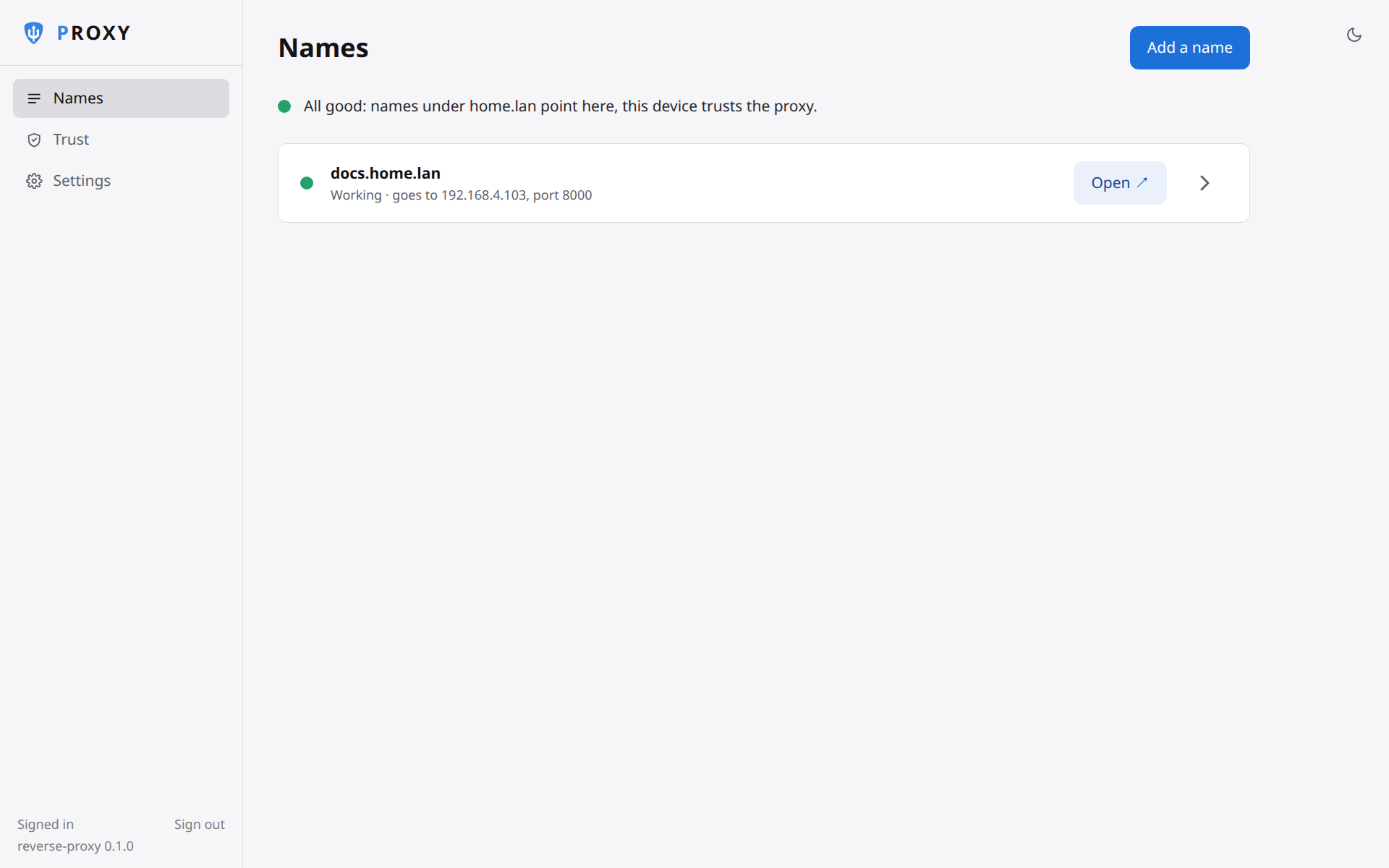
Friendly HTTPS names for the services on your network: a managed Caddy reverse proxy with a web UI, secure by default.
| Port | 80 |
| Registry | ghcr.io/daemonless/reverse-proxy |
| Daemonless | daemonless/reverse-proxy |
| Source | daemonless/reverse-proxy |
| Website | daemonless.io/images/reverse-proxy |
Version Tags
Multi-arch manifests — resolve automatically to the right image for your platform.
| Tag | Description | Best For |
|---|---|---|
latest |
daemonless Appliance. Managed Caddy reverse proxy with a web UI, built from source. | Most users — recommended. |
| Tag | Description | Best For |
|---|---|---|
latest-amd64 |
daemonless Appliance. Managed Caddy reverse proxy with a web UI, built from source. | Most users — recommended. |
| Tag | Description | Best For |
|---|---|---|
latest-aarch64 |
daemonless Appliance. Managed Caddy reverse proxy with a web UI, built from source. | Most users — recommended. |
Before deploying, ensure your host environment is ready. See the Quick Start Guide for host setup instructions, including the security model for host vs. container privileges.
Deployment
Save as compose.yaml, then run podman-compose up -d.
Warning
Exposing ports in AppJail means that your service can be reached from remote hosts. If that is not your intention, do not expose the ports and communicate with the service using the jail's IPv4 address or hostname assigned by the virtual network.
Save the files above, then run appjail-director up.
Experimental
Bastille's OCI support is experimental. It requires buildah and shares the host network stack (inherit). Mount volumes with --volume HOST JAIL; without it, image-declared volumes are stored under ${bastille_volumesdir}/${jail}.
Save as bastille-compose.yml, then run bastille up.
Open http://<server>:80 from another machine (the server's own browser can't use a published port).
Interactive Configuration
Parameters
Environment Variables
| Variable | Default | Description |
|---|---|---|
PUID |
1000 |
User ID for the admin process (Caddy stays root to bind 80 and 443) |
PGID |
1000 |
Group ID for the admin process |
TZ |
UTC |
Timezone for the container |
RP_ADMIN_URL |
`` | Where you open the admin UI, e.g. https://192.168.1.5:8443. Optional: the proxy remembers the address you sign in at; this makes the first-run link exact before anyone has. |
RP_TRUST_PORT |
`` | Host port that reaches the HTTP trust page if you publish it on something other than 80. Optional. |
RP_DEBUG |
`` | Set to 1 for Caddy's full info-level log. Off by default so the log stays readable. |
RP_PAIRING_KEY |
<RP_PAIRING_KEY> |
Admin only. A key (32+ random characters) an app that installed the proxy, such as fjord, uses to manage hosts; registered once as a connected app |
RP_PAIRING_NAME |
`` | Admin only. The connected app's name for RP_PAIRING_KEY. Default: Paired app |
RP_SETUP_TOKEN |
<RP_SETUP_TOKEN> |
Admin only. First-run setup token chosen by the installing app, so it can open setup for you. Default: a new one in the log |
Volumes
| Path | Description |
|---|---|
/config |
Admin state and secrets |
/data |
Certificates, ACME account and the internal CA |
Ports
| Port | Protocol | Description |
|---|---|---|
80 |
TCP | HTTP: trust page and redirects to HTTPS |
443 |
TCP | HTTPS: your hosts |
8443 |
TCP | Admin UI (HTTPS) |
First run
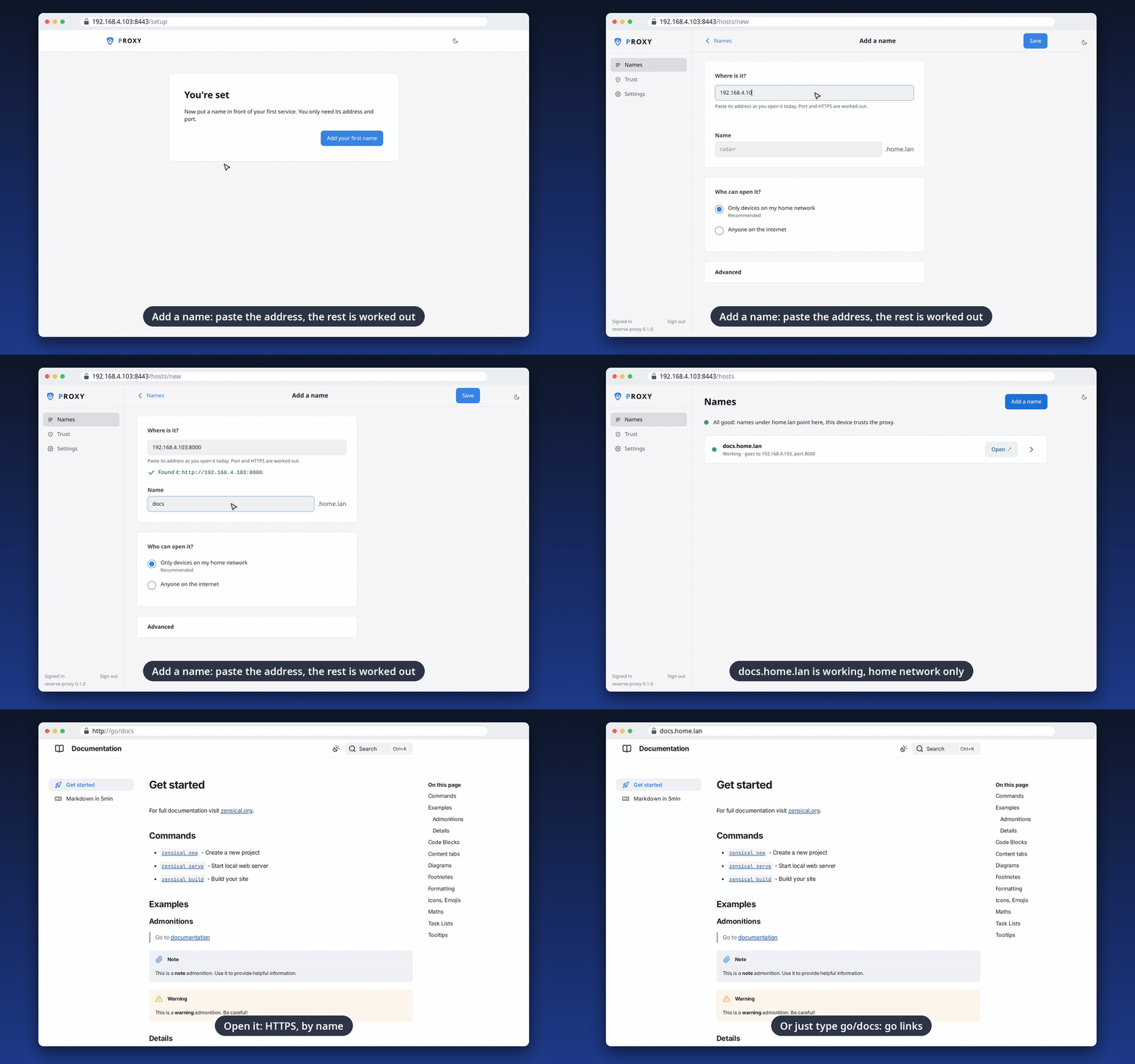
Start the container and read its log: it prints a link like
https://<this machine>:8443/#token=XXXX-XXXX-XXXX-XXXX. Open it from
another device on your network (the host itself cannot reach its own
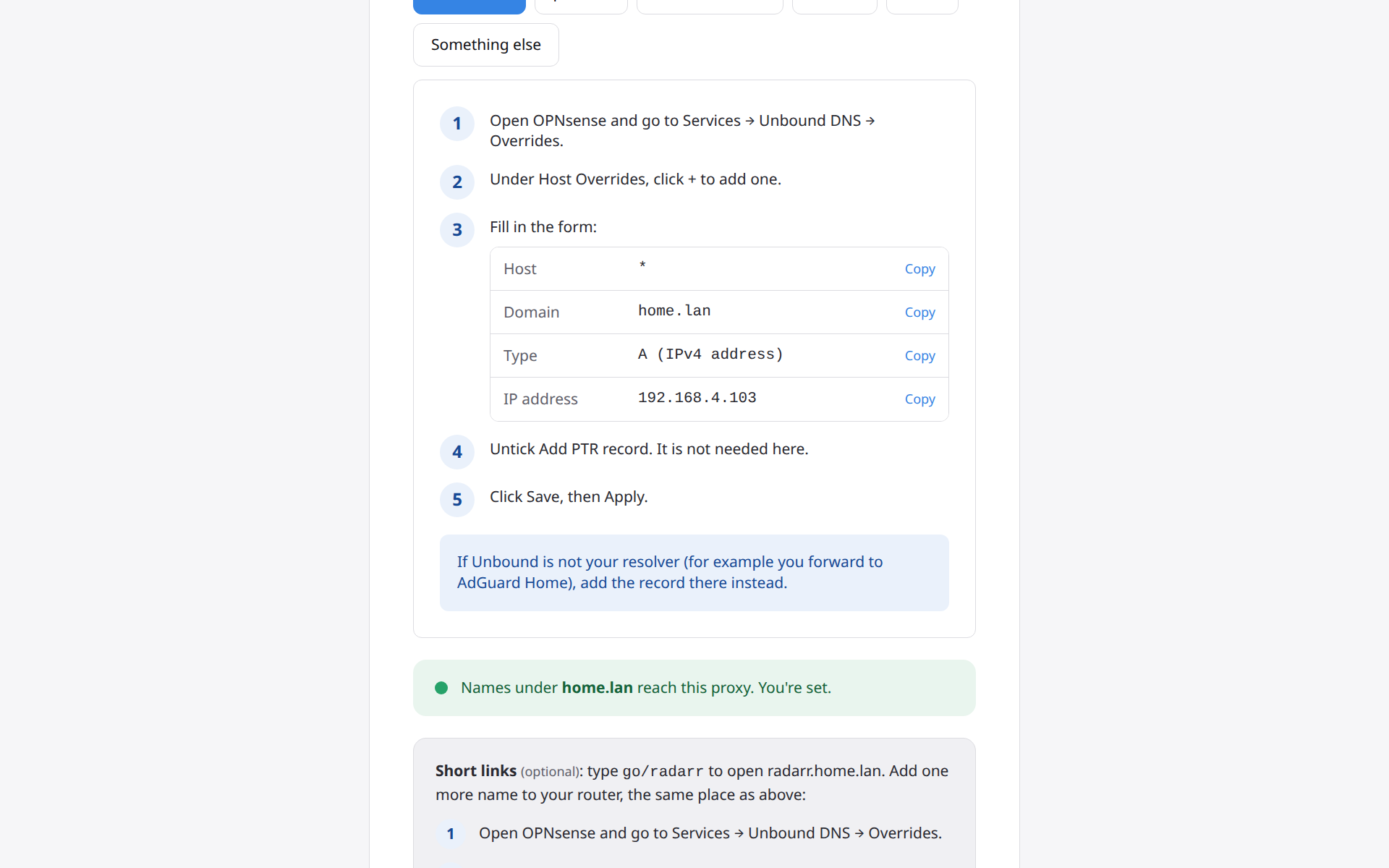
published ports) and follow the steps: password, the ending for your
service names (for example apps.lan), one DNS record, and trusting the
proxy on your devices. From then on the proxy remembers the address you
sign in at, so reverse-proxy reset-password and a later first run
print it; RP_ADMIN_URL makes the very first link exact too.
The admin UI uses a self-issued certificate until setup is done, so the
browser warns once. After setup it is also served at
https://proxy.<your ending>:8443 with a certificate your devices trust.
How it works
One container, two programs: Caddy runs as root so it can bind ports 80
and 443, and the admin runs as bsd (PUID/PGID). They talk over
unix sockets inside the container, so the stack works on any network.
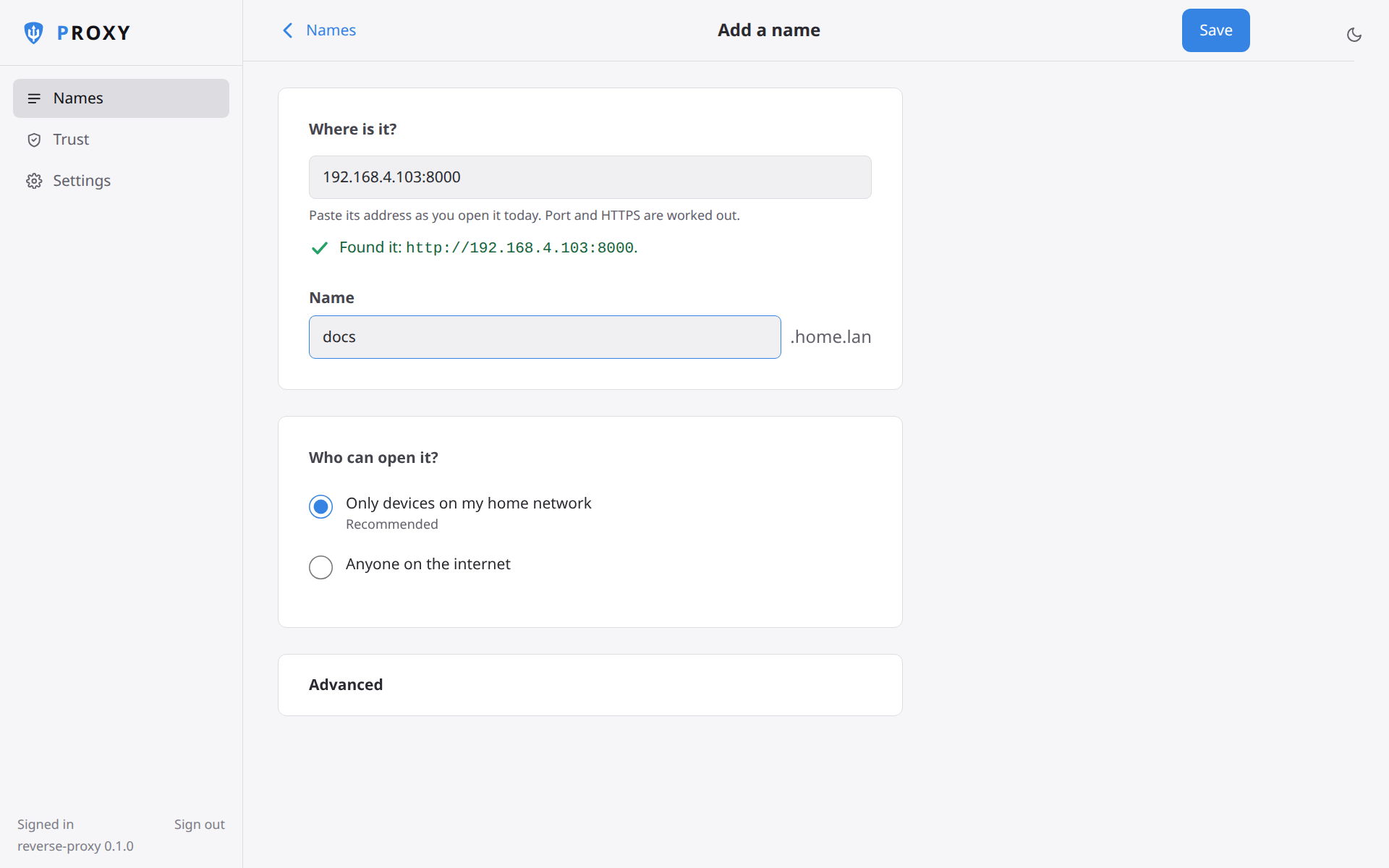
Every host you add becomes a name under your ending, served over HTTPS
and proxied to the address and port you gave. Hosts are "home network
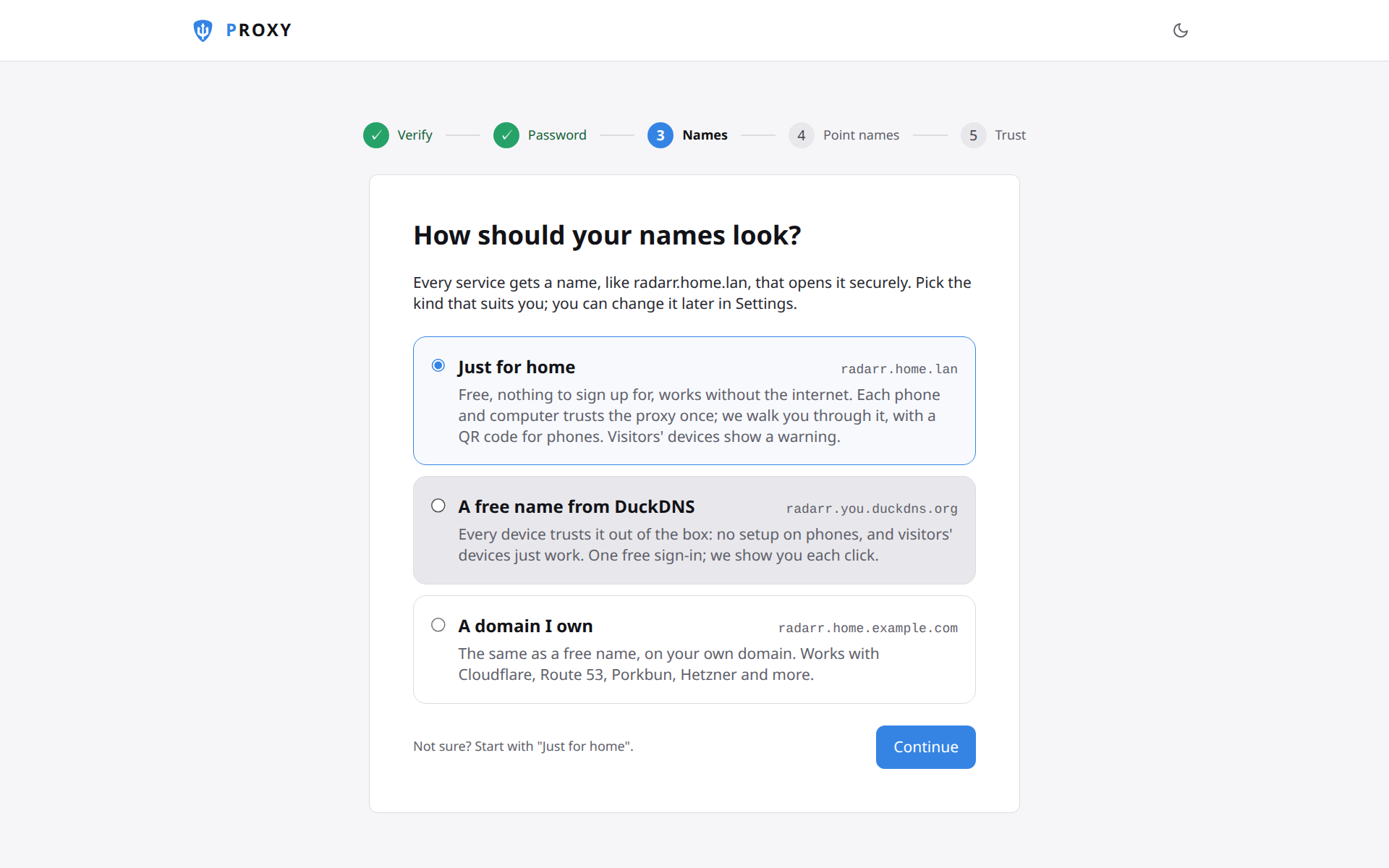
only" unless you open one to the internet. With a private ending
(.lan, .home.arpa, …) the proxy is its own certificate authority,
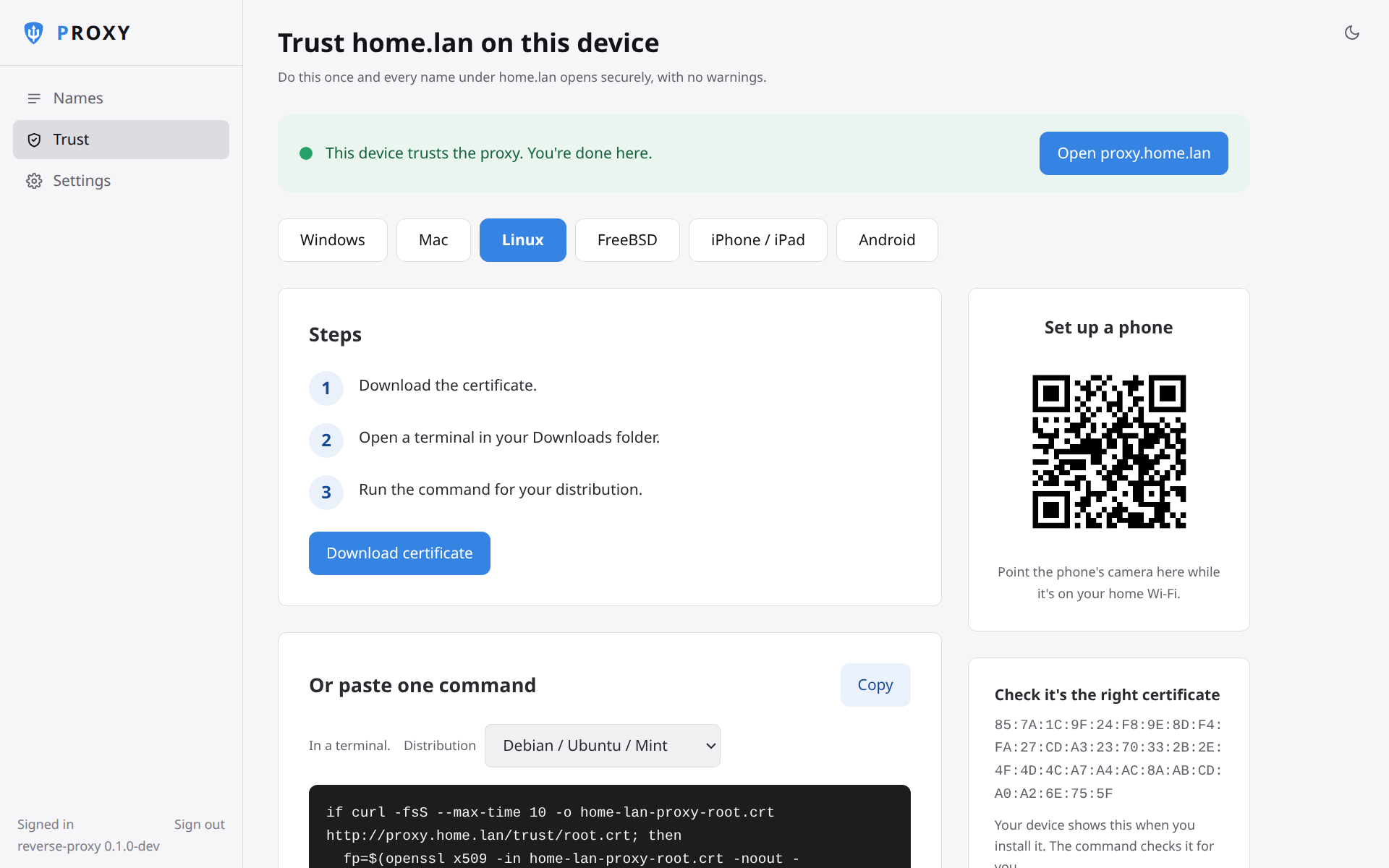
restricted to that ending; the Trust page walks each kind of device
through trusting it once, with a QR code for phones.
With a real domain (home.example.com) the wizard asks where its DNS
is hosted (Cloudflare, Route 53, DuckDNS, deSEC, Porkbun, Hetzner, OVH,
Gandi, any RFC 2136 server or acme-dns; the right one is picked from the
domain's nameservers) and for a token that can edit its records. The
proxy then gets one wildcard certificate for every name under the
domain from Let's Encrypt and renews it by itself, so no device needs
any setup. The token is tried against the staging service first, so a
wrong one never counts against Let's Encrypt's limits. Nothing is
reachable from the internet unless a host is opened to it.
No domain? Pick "A free name from DuckDNS" in the wizard: sign in at
duckdns.org, add a name, paste its token, and every service gets a name
like radarr.you.duckdns.org with a certificate every device already
trusts.
Short links
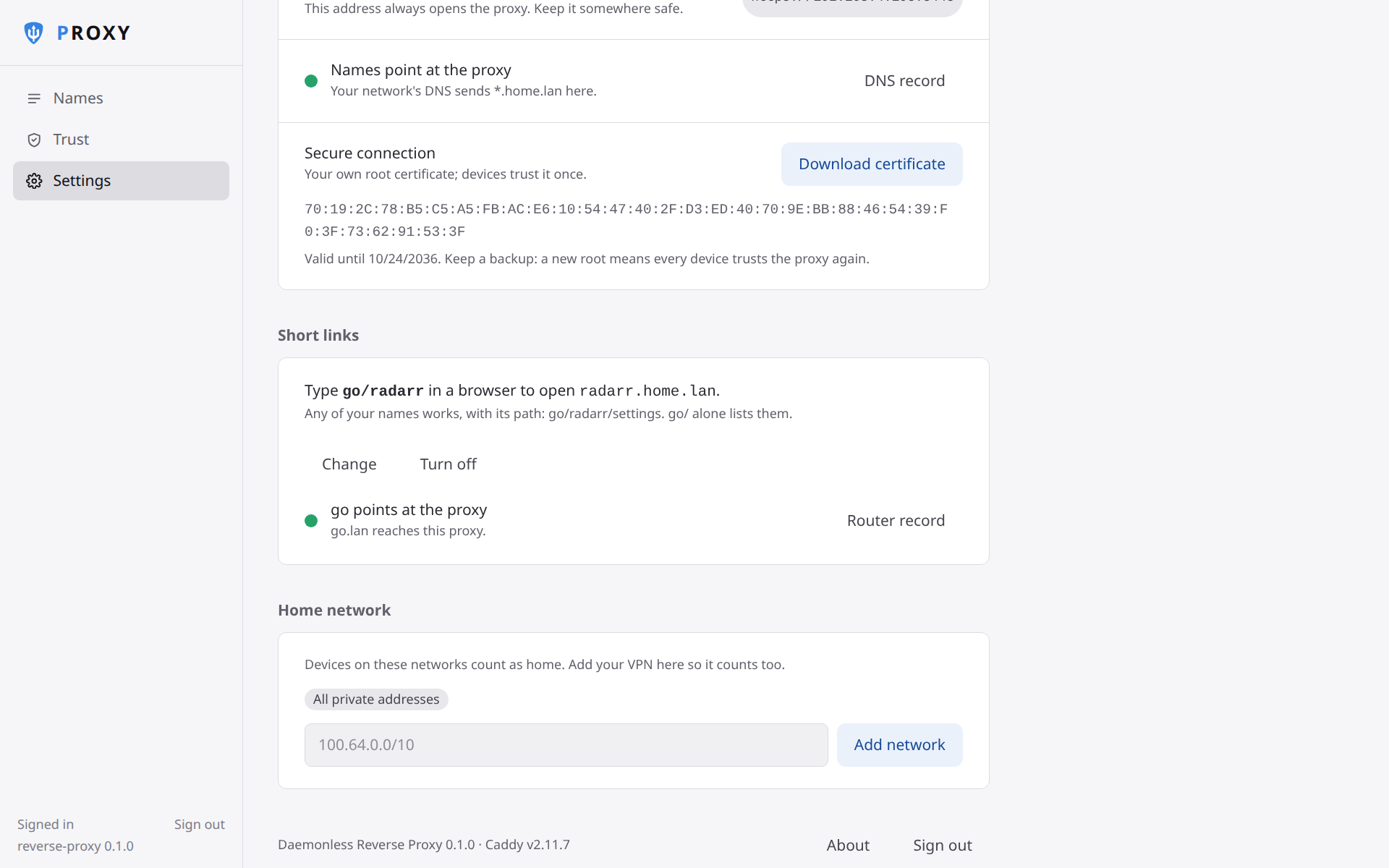
Go links: type go/radarr in a browser to open radarr.<your ending>.
Any of your names works, with its path, and go/ alone
lists them. It takes one more record on your router (go pointing at
the proxy); setup and Settings → Short links walk you through it and
turn green once it works. The word is yours to change, or turn off. The
first time, type http://go/radarr with the http://: Safari and
Firefox otherwise search the web for it.
Scripts and other apps
Anything that can make an HTTPS request can manage hosts. Make a key
under Settings → Connected apps (or hand one to the proxy at install as
RP_PAIRING_KEY) and send it as a bearer token; a key manages hosts and
nothing else. The reference is the proxy's own
https://<proxy>:8443/api/v1/openapi.json.
Inside the container the same works from the command line, no key needed:
Operations
- Forgot the password: run
podman exec reverse-proxy reverse-proxy reset-passwordto print a new setup link. - Backup: Settings → Backup downloads one passphrase-encrypted file (hosts, settings, password, root certificate). Restore it from the welcome screen of a fresh install.
- Keep
/data: it holds the certificates Caddy issued. Losing/configloses the root certificate (and the DNS token), and every device would have to trust the proxy again; a backup avoids that. - Certificate trouble: the Hosts page shows a banner while a certificate is being obtained or when it failed, with the reason in plain words (token rejected, token cannot edit the zone, record did not appear, rate limit). Change the token under Settings → Secure connection.
- Non-default HTTP port: if you publish the trust page on something other than 80, set
RP_TRUST_PORTso the Trust page's commands and QR code use it.
Implementation Details
- Architectures: amd64, aarch64
- User:
root(UID/GID set via PUID/PGID). Defaults to1000:1000. - Base: Built on
ghcr.io/daemonless/base(FreeBSD 15.1).
Need help? Join our Discord community.